

Workspace Overview
Learn what each main area of the Stylo workspace is for and where to go for setup, daily operations, and review.
Stylo is organized so your team can move from setup to daily work without hunting for the right screen. The main sidebar separates day-to-day work, review queues, and organization setup so agents and admins can get to the right area quickly.
Main navigation areas
The main sidebar has three navigation sections:
- The main workspace section for Dashboard, Workflows, Tone & Instructions, Context Engine, Voice AI, and Sentiment
- Observe for Analytics, Logs, and Approvals
- Org Settings for Integrations and Settings
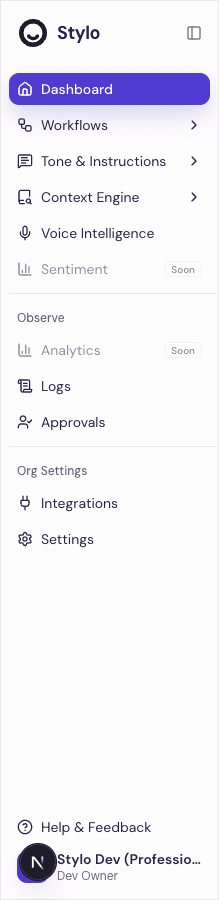
Some items in the sidebar expand into sub-pages. This helps you move from a broad area like Tone & Instructions or Context Engine into a more specific setup page without leaving the same part of the workspace.
Start with Dashboard
Dashboard is the main landing page in the sidebar, and the page itself is titled Home. It gives you a quick view of what needs attention right now:
- Pending approvals
- Failed executions
- Knowledge bases with sync errors
- Your onboarding checklist
This is the best place to start when you want to see what is blocking setup or what needs review today.
Build and manage workflows
Use Workflows when you want Stylo to help with repeatable support tasks.
Inside this area, Stylo separates two workflow types:
- Response Workflows for AI-generated customer replies
- Workflow Builder for broader, multi-step workflow automation
If your team is still validating response quality, start with response workflows and route drafts through review before expanding automation.
Set the voice and rules for replies
Use Tone & Instructions to control how Stylo writes.
This area includes:
- Tone for voice and style
- Instructions & Policies for response rules
- Language Settings for language behavior
This area matters before you scale usage. If replies sound off-brand or miss a policy requirement, this is one of the first places to review.
Ground responses in your source content
Use Context Engine to manage the information Stylo can pull into AI responses.
This area includes:
- Knowledge for your connected knowledge bases
- Query mapping for improving how real support requests map to useful context
- Settings for context engine behavior
If response quality is weak because Stylo is missing the right article or pulling weak context, start here.
Review what needs human attention
Use the Observe group to monitor work after workflows run.
- Logs shows execution history so you can inspect what ran and where something failed
- Approvals is the review queue for drafts that need a person before they go out
This matters most when you are expanding automation. Logs help you investigate failures. Approvals help you keep a human review step where needed.
Manage workspace configuration
Use Org Settings for organization-wide setup:
- Integrations for connected systems
- Settings for workspace configuration
Inside Settings, Stylo uses its own sidebar with:
- General
- Members
- Assist Sidebar Layout
This is where workspace admins typically handle team setup and configuration changes.
Voice AI
Voice AI appears as its own main navigation item in the core workspace. Use it when your team needs voice-specific AI settings instead of standard text-only workflows.
What is not available yet
Some navigation items are visible but marked as coming soon:
- Sentiment
- Analytics
If you see these items in the sidebar, treat them as placeholders rather than active workspace areas.
Help and support
The workspace footer also includes Help & Feedback. From there, customers can open:
- Documentation
- Support
Use this when you need product guidance without leaving the app.
A practical way to move through Stylo
For most teams, the workspace flow looks like this:
- Open Home to see onboarding steps and anything that needs attention.
- Configure Tone & Instructions, Context Engine, and Integrations.
- Build or refine Response Workflows for common ticket types.
- Use Approvals and Logs to review outputs and fix issues.
- Return to Settings when you need to manage members or workspace behavior.