

Security and Data Handling
Manage access, credentials, integrations, and uploaded files using the controls available in Stylo today.
Three controls in Stylo decide how exposed your workspace is: who can get in, which external systems Stylo connects to, and what content you upload. This page walks through tightening each one — managing access, reviewing integration connections, and cleaning up uploaded files.
Start with access control
The strongest security step in Stylo is controlling who can join the workspace and what role they receive.
From Members, admins can:
- Invite one person by email
- Review and revoke pending invitations
- Create join links with a preset role
- Set an optional max-use limit on a join link
- Disable a join link when it should no longer work
Use direct invitations when access should go to one known person. Use join links only when you need to onboard a group with the same role.
Join links are broader by design. Anyone with an active link can join with the assigned role until the link is disabled or reaches its usage limit.
Choose the least powerful role that will work
Stylo lets you assign these roles from the access workflows:
- Viewer
- Agent
- Admin
Use the lowest role that still supports the person's job. This matters most when you are creating invitations or join links that could be shared more widely than intended.
If you are onboarding a large group, start with Viewer or Agent unless the group truly needs settings access.
Review pending access regularly
Pending invitations and active join links are temporary access paths. Review them when:
- A rollout or training session is complete
- Someone no longer needs workspace access
- You sent an invite to the wrong email address
- A shared join link should stop working
Revoking an invitation blocks that invitation from being accepted later. Disabling a join link stops future use of that link.
Understand what Stylo asks for when you connect an integration
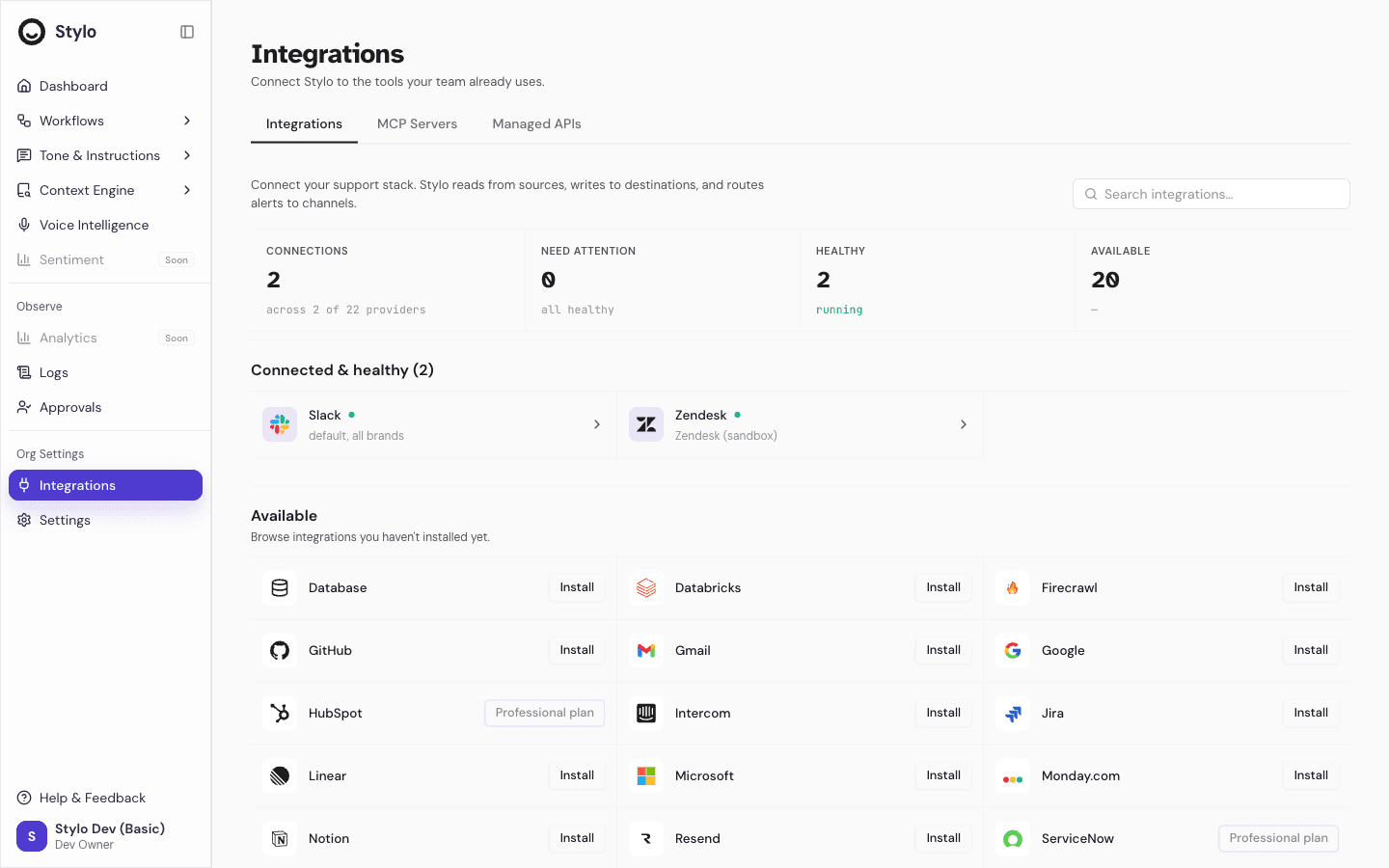
From Integrations, Stylo shows providers as not installed, connected, degraded, auth expired, disconnected, or error.
Some integrations use OAuth. Others ask for an API key or a structured JSON secret in a connection dialog.
For API key based connections, the dialog asks for:
- The provider name
- The expected credential label
- One secret value, entered either as a password field or a JSON text field
Use the provider's own least-privilege credential option when you create that secret. Stylo's connection dialog does not decide the permissions of the key. The permissions come from the external system that issued it.
Use integration status as an operational check
The Integrations page is the quickest place to spot connection problems that can affect AI outputs or workflow actions.
Check integration status when:
- A workflow stops pulling data from another system
- An OAuth connection needs attention
- You want to confirm whether a provider is connected before using it in Stylo
Status labels help you decide what to do next:
- Connected means the integration is available
- Degraded or Auth Expired means the connection needs attention
- Disconnected means it is not currently connected
- Error means the connection failed and should be reviewed
If an integration is no longer needed, remove or replace that access path from its management flow instead of leaving an unused connection in place.
Know which integrations are available on your plan
Some integrations are plan-gated in the current product. If a provider is locked for your workspace plan, Stylo shows the required plan before connection.
This matters for rollout planning. A missing integration may be a plan limitation, not a setup mistake.
Upload only the file types Stylo supports
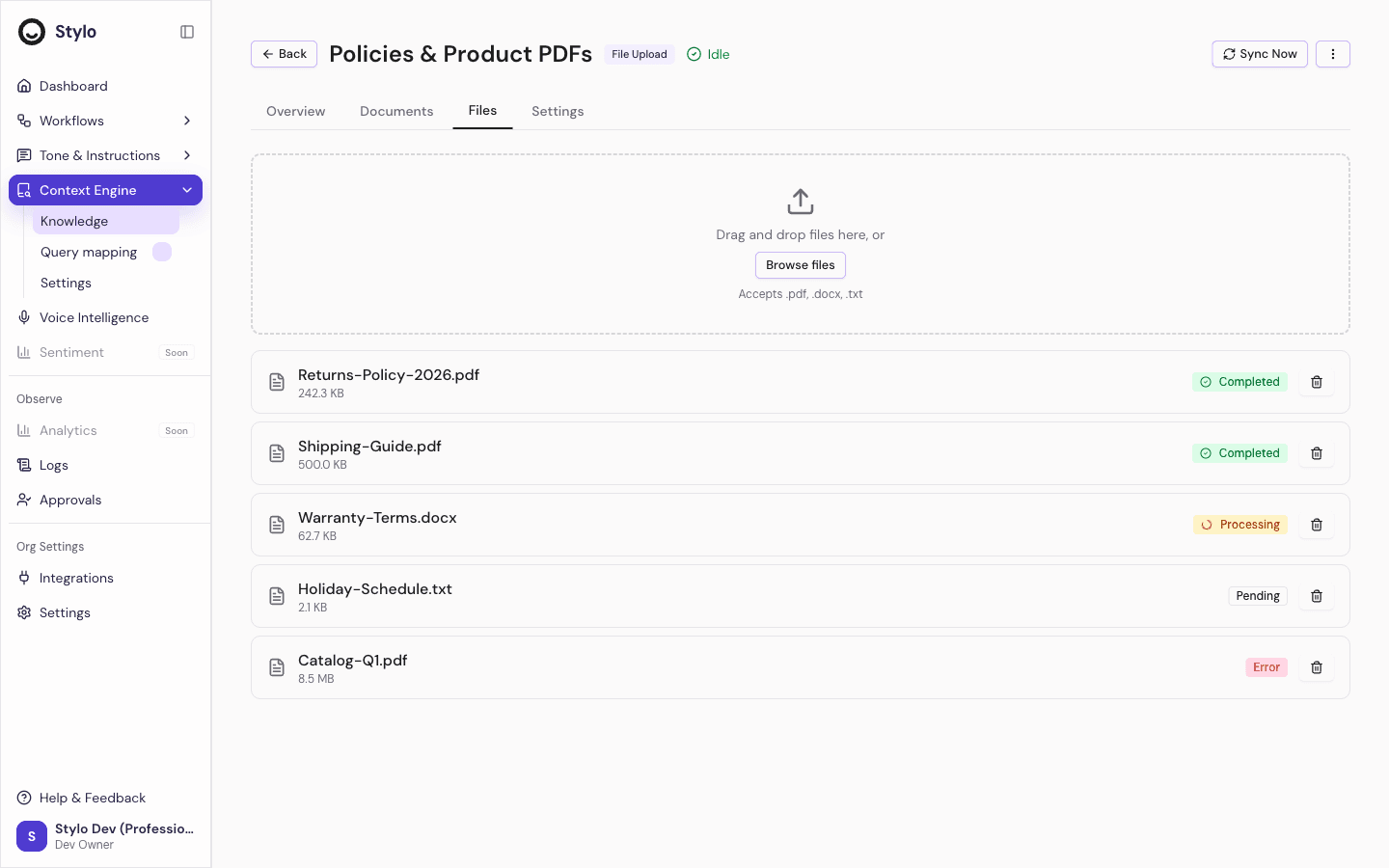
For file-upload knowledge bases, Stylo accepts these file types:
.pdf.docx.txt
After upload, each file moves through a visible processing state:
- Pending
- Processing
- Completed
- Error
If a file reaches Error, Stylo shows the processing error on that file. Use this to decide whether to retry with a different file or remove the failed upload.
Delete outdated files carefully
Uploaded files can be deleted from the file list. The delete dialog states that this action cannot be undone.
Use deletion when:
- A file was uploaded by mistake
- The content is outdated
- The document should no longer be available in that knowledge base
Do not leave stale or duplicate files in a knowledge base if they should no longer inform retrieval.
Practical review checklist
Use this sequence when you want to tighten workspace trust controls:
- Open Members and review admins, pending invitations, and active join links.
- Revoke invitations that should no longer be accepted.
- Disable join links that were meant for temporary onboarding.
- Open Integrations and review connection status for each provider.
- Remove or update connections that are no longer valid for your team.
- Open the Files tab in file-upload knowledge bases and remove outdated uploads.
What this page doesn't cover
This page is about the controls you can see and use in the product. For storage architecture, encryption, retention, and compliance commitments, ask the Stylo team through your security review rather than inferring them from the UI.