

Workflow Builder Overview
Learn how Stylo's automation builder is organized, how to start a workflow, and how blocks, containers, variables, and approvals fit together.
The Workflow Builder is Stylo's general automation surface for multi-step operational flows. Use it when you need more than a single response draft, such as routing work, calling connected systems, pausing for approval, or combining AI with system actions in one automation.
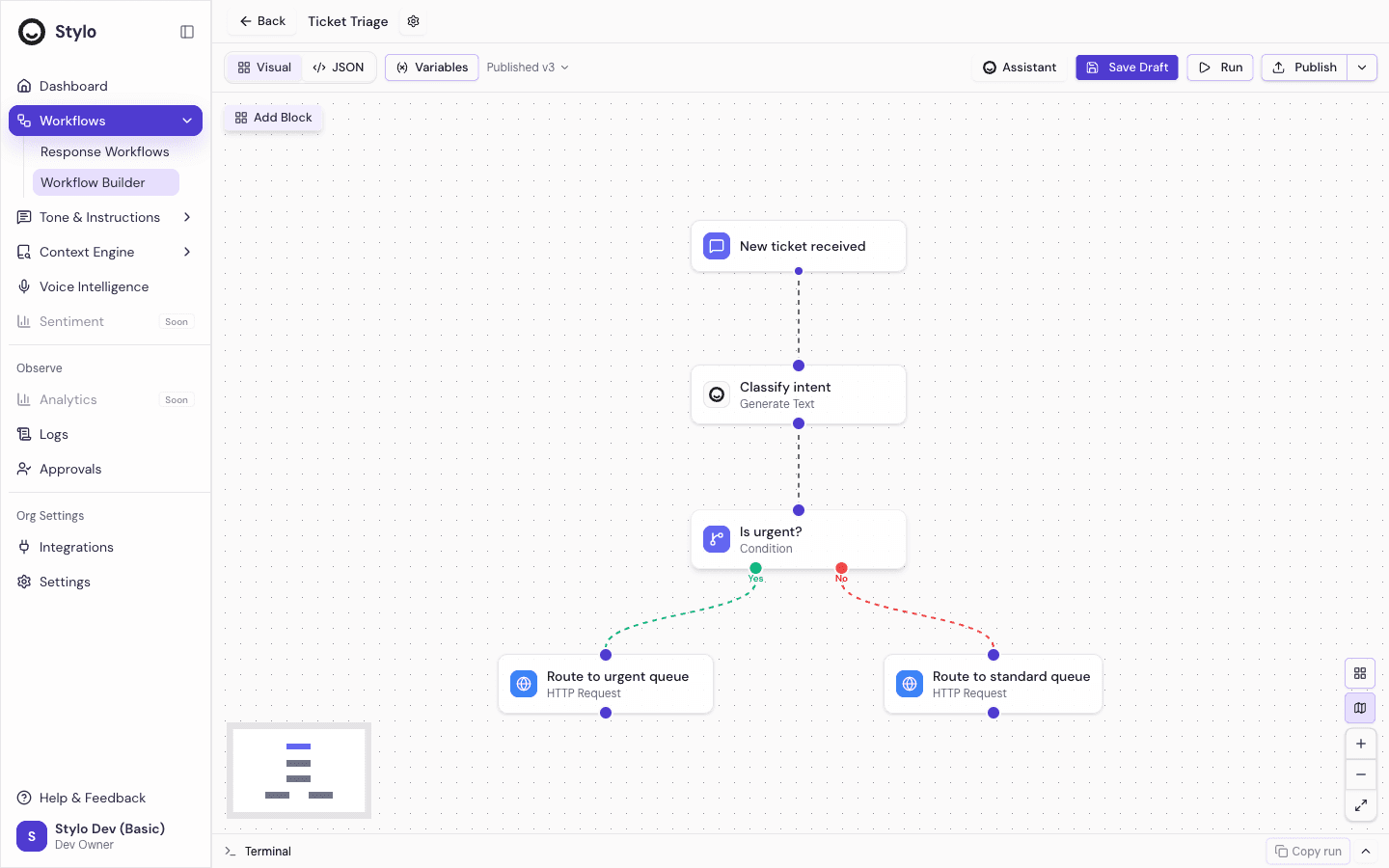
Where it lives
In the main navigation, the Workflows area contains two distinct surfaces:
- Response Workflows for response-specific drafting and automation
- Workflow Builder for multi-step, block-based automations
The two are separate. Choose the Workflow Builder when your process needs a visual flow of connected steps rather than a single response workflow configuration.
Start a workflow
From the Workflows page, you can:
- Create a blank workflow
- Start from a workflow template
- Open an existing workflow and continue editing
Templates are available for common operational patterns, while a blank workflow opens an empty canvas.
What the builder includes
The editor is centered on a visual canvas.
- Canvas for placing and connecting workflow steps
- Block palette for adding triggers, system blocks, AI blocks, and integration blocks
- Variables for reusable values that can be referenced across node configuration
- Workflow settings for the workflow name and description
Build on the canvas
Each workflow is made of connected nodes.
- A workflow starts from a trigger node
- Additional blocks are connected on the canvas to define execution flow
- Edges show how the workflow moves from one step to the next
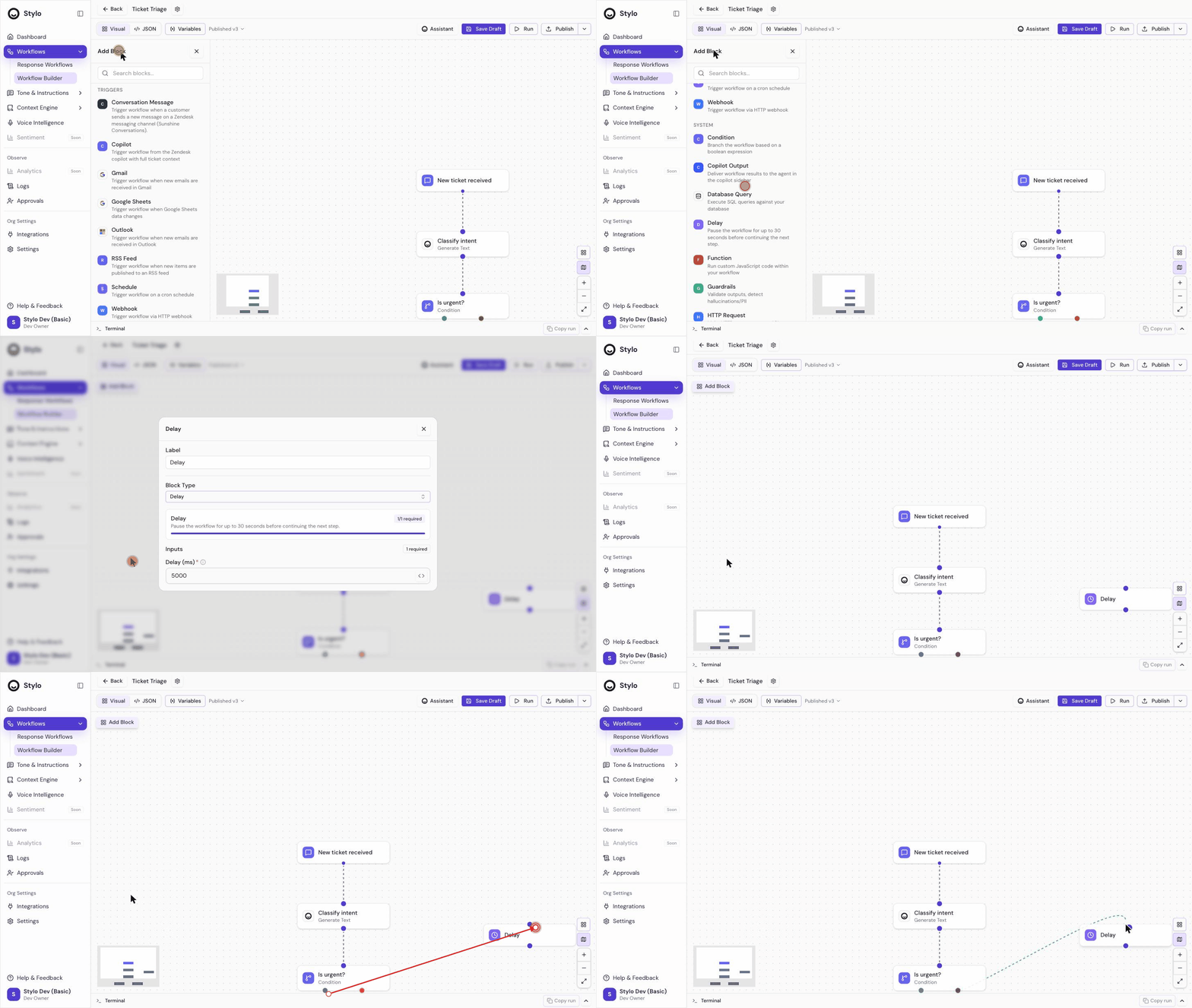
- You can add a block by opening the block palette or by dropping a connection onto empty canvas space
The canvas is designed for visual editing, so layout and flow structure are part of how you review the automation.
Use blocks and containers
The block palette groups blocks by category and integration provider.
- Triggers start a workflow
- System blocks handle platform-level actions
- AI blocks add model-powered behavior
- Integration blocks are grouped under the connected provider they belong to
The builder also supports container-style structures for more complex logic.
- Loop containers group steps that repeat over a set of items
- Parallel containers group steps that run in parallel branches
Regular action nodes can be moved into or out of those containers on the canvas.
Use workflow variables
Workflow variables are reusable key-value pairs defined at the workflow level.
- Variables can be created with
string,number,boolean, orjsontypes - Each variable has a default value
- Variable names must be unique inside the workflow
- You can reference a variable in node configuration fields using the workflow variable placeholder format shown in the Variables dialog
Variables are useful when the same value needs to be reused across multiple steps.
Human review and approvals
Some automations need a person to review or approve an action before the workflow continues.
The workflow builder supports approval-based pauses through approval-capable blocks. When a workflow pauses for human review, Stylo routes the review to Approvals before the automation continues.
This is especially important for higher-risk actions such as sensitive API operations or workflows that should not run without a human checkpoint.
Backlog runs for automations
The broader workflow builder also supports backlog runs, but only when the workflow includes an approval block.
That requirement exists so backlog execution stays reviewable instead of running unattended across older tickets.
Workflow status
Each workflow on the overview list shows one of three primary statuses:
- Published — the workflow has an active published version. Triggers will start new runs against that version.
- Draft — the workflow has never been published. It's being built and will not run.
- Paused — the workflow was previously published but has been paused from the editor. It will not run until you publish again.
Use the Published, Draft, and Paused tabs at the top of the list to filter the view.
Unpublished changes
If you edit a published workflow, the running version keeps firing on triggers while your edits live in the draft. In that state the list shows an Edited indicator next to the Published badge so you can tell at a glance that the draft has moved ahead of the live version. Clicking Publish new version in the editor promotes the draft and clears the indicator.
When to use this builder instead of Response Workflows
Choose the workflow builder when you need:
- Multi-step automation across several systems
- Visual branching or grouped execution
- Workflow-level variables reused across multiple nodes
- Approval checkpoints inside the automation itself
Choose Response Workflows when your goal is primarily to generate or automate support responses.
Related
- Backlog Runs for the response workflow backlog review pattern
- Analytics and Operations for operational review once that guide is available