

Assist Sidebar Layout
Control which blocks appear in the Assist sidebar, in what order, and which ones agents can't hide.
Assist Sidebar Layout controls which blocks appear in the Assist sidebar and in what order. Use it to put the most useful information first, remove blocks your team doesn't use, and keep required blocks visible for every agent.
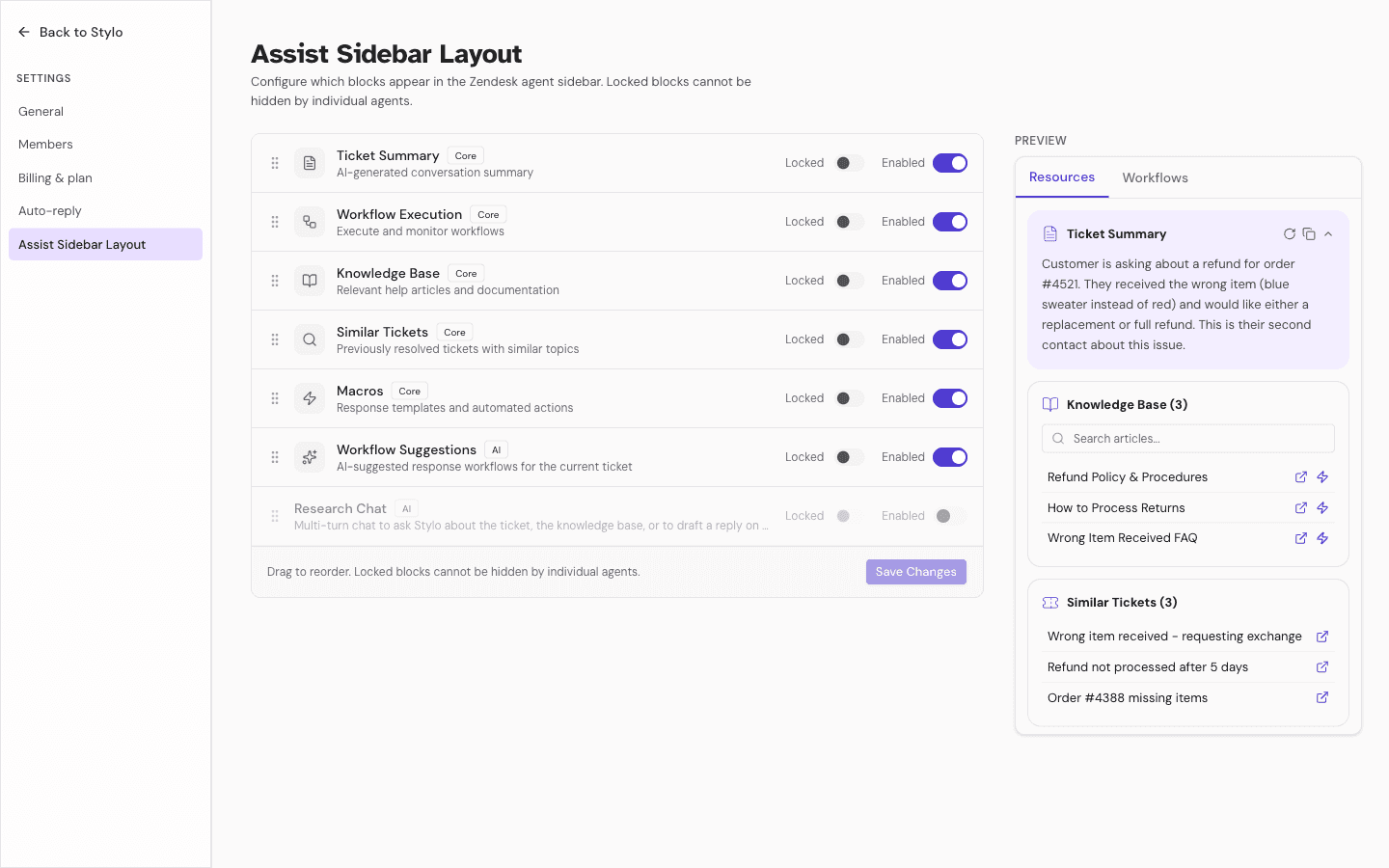
What this setting controls
The page configures which blocks appear in the Zendesk agent sidebar. For each block, you can:
- Drag to reorder it
- Turn it on or off
- Mark it as locked
Locked blocks can't be hidden by individual agents.
Where to find it
Open Org Settings.
Go to Settings.
Open Assist Sidebar Layout in the settings sidebar, alongside General and Members.
Reorder blocks
Drag the handle on the left of a block row to move it up or down. The order you save is the order agents see in the sidebar.
Enable or disable a block
Each block has an Enabled switch.
- Turn it on to keep the block in the layout.
- Turn it off to remove it from the active layout.
Disabled blocks appear dimmed in the settings list until you turn them back on.
Lock a block
Each enabled block also has a Locked switch. Lock a block when it should always stay visible for agents, even if an individual agent would otherwise hide it.
- A locked block stays required at the organization level.
- A disabled block can't be locked.
- Locking only applies to enabled blocks.
Blocks you can configure
The sidebar blocks include:
- Ticket Summary
- Knowledge Base
- Similar Tickets
- Macros
- Shopify Orders
- Workflow Suggestions
- Workflow Execution
The settings list groups them by category — Core, Integration, and AI.
Save changes
After you reorder or toggle blocks, select Save Changes. Only admins can update the organization's sidebar layout; if someone without that access tries to save, Stylo rejects the change.
Recommended setup
- Keep core blocks like ticket context and knowledge visible.
- Move the most-used blocks higher in the list.
- Hide blocks your team doesn't use regularly.
- Lock the blocks that should stay consistent for every agent.
- Revisit the layout after major workflow or integration changes.
Limits and failure modes
- Layout settings currently apply to the Zendesk agent sidebar.
- Ordering is done through the saved list on this screen.
- Locked blocks prevent individual agents from hiding required blocks.
Related
- Workspace Overview for the full navigation model
- Assist for how the sidebar is used during agent work