

Troubleshooting
Diagnose common Stylo issues by checking execution history, execution detail, sync status, and integration connection state.
When something in Stylo isn't behaving as expected, start here. This page helps you tell apart the common culprits — a workflow that failed, an approval that's waiting, knowledge that's out of date, or an integration that stopped returning data — and points you to the right screen for each.
Start with the symptom
Most troubleshooting in Stylo starts from one of these symptoms:
- A workflow did not finish
- A workflow is stuck waiting
- Knowledge content looks stale or incomplete
- An integration stopped returning data
Use the symptom to choose the first screen to inspect.
Common issues and fixes
Start here for the issues support teams hit most often. Each entry is symptom-first; if none match, use the diagnostic guide further down.
A workflow is not triggering on new tickets
Likely cause: the workflow is still a draft, its "when to use" description doesn't match the ticket, a condition is filtering the ticket out, an escalation rule is holding it for review, or a required integration is not connected.
What to do:
- Confirm the workflow is published — a draft never runs live. See Creating a Workflow.
- Review the workflow's conditions — the ticket must match for the workflow to apply.
- Check the "when to use" description is specific enough to match the ticket's intent, not too narrow.
- Check your escalation rules aren't intentionally holding the ticket for human review.
- Confirm any integration the workflow depends on shows Connected.
Then open Execution History for the workflow to see whether it attempted a run at all.
A knowledge base is stuck on "Syncing"
Symptom: the sync card shows Syncing for far longer than a normal sync, sometimes with a document count of 0, and the content never refreshes.
Likely cause: a sync run did not finish cleanly, so its status was never advanced to Idle or Error.
What to do:
- Open the knowledge base and start the sync again.
- If it completes, the status returns to Idle and the document count updates. See Knowledge Sync and Documents.
- If it stays on Syncing, escalate with the knowledge base ID and the time the sync started.
While a knowledge base is stuck on Syncing, do not assume its content is current — workflows may be grounding on stale or incomplete content.
An integration shows "Auth Expired" or stopped returning data
Symptom: workflows that rely on an integration stop getting external data, and the integration detail page shows Auth Expired or Error.
Likely cause: the stored credentials expired or were revoked at the provider, or the provider changed the access Stylo was granted.
What to do:
- Open the integration's detail page and reconnect it.
- For OAuth integrations, sign in again at the provider. For API-key integrations, re-enter a valid key. See Integrations.
- Re-run an affected workflow to confirm data returns.
- If the integration returns to Auth Expired or Error after reconnecting, escalate.
If a workflow did not finish
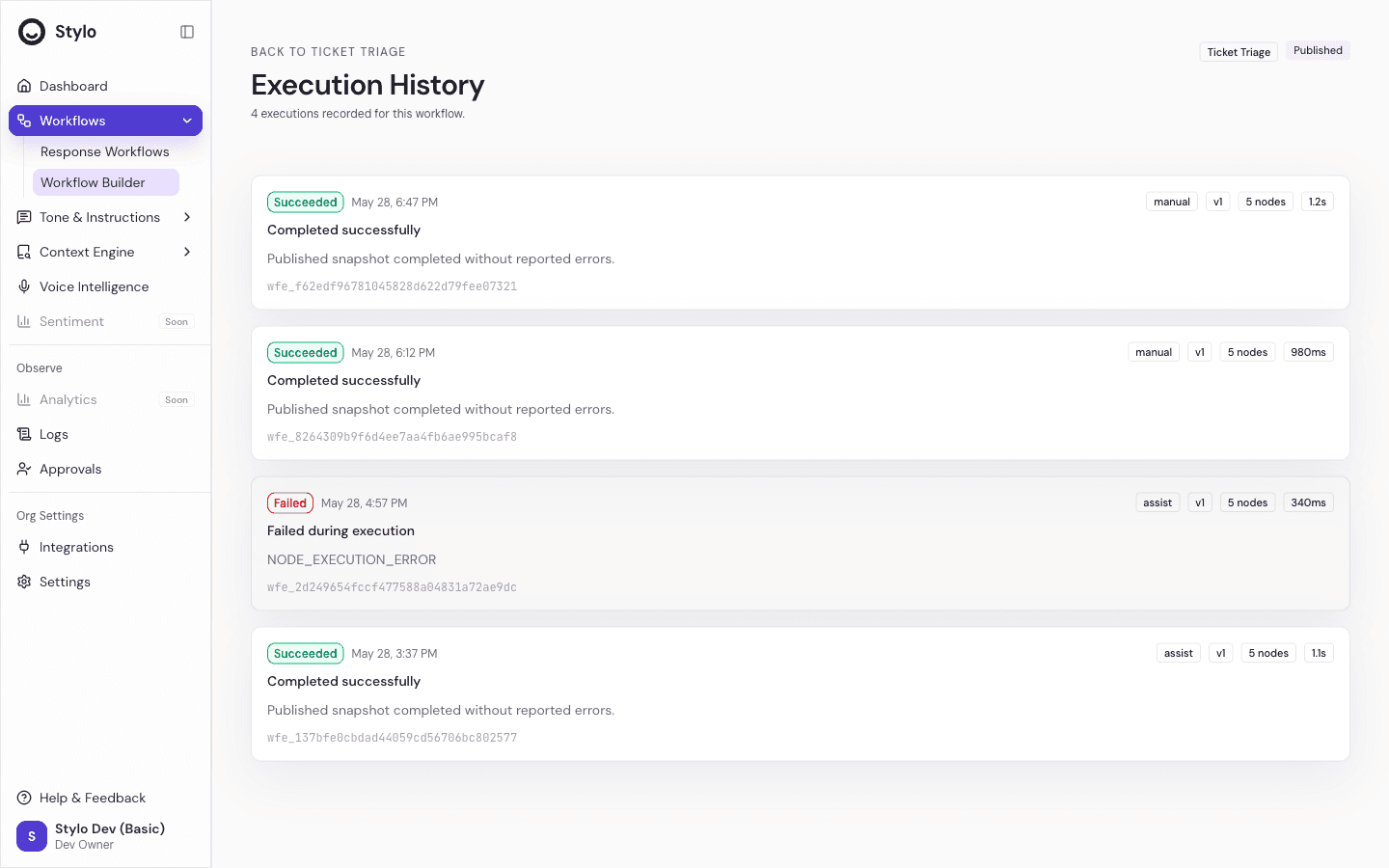
Start with Execution History for the affected workflow.
Execution History helps you answer these questions quickly:
- Did the workflow run at all
- Did the latest run succeed or fail
- When did it start
- Which trigger started it
- How long did it run
If the workflow has multiple recent runs, compare them before changing anything. A repeated failure pattern is usually easier to diagnose than one isolated run.
If a run failed
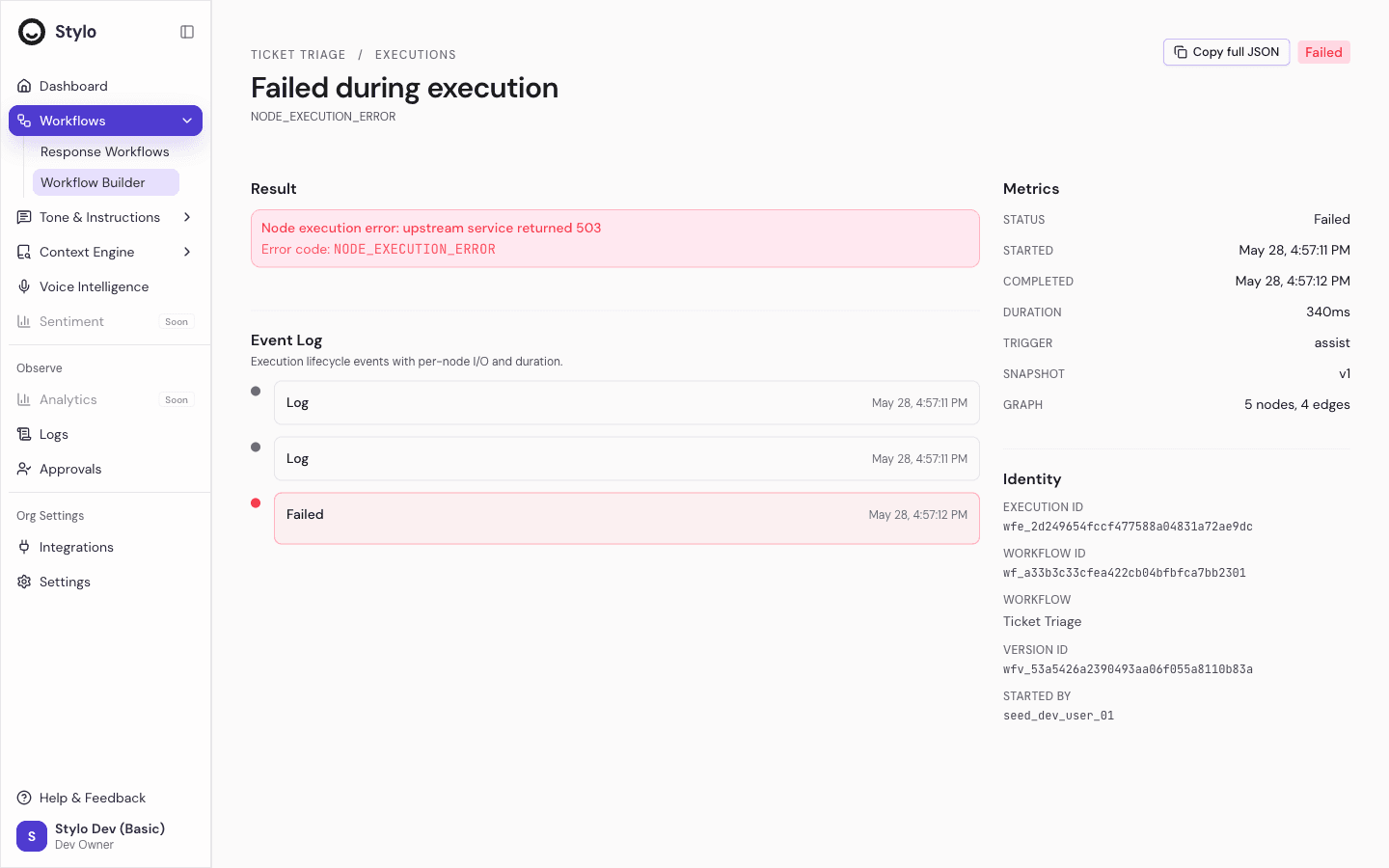
Open the run in Execution Detail.
That view is the best place to inspect:
- The execution status
- The result summary
- The failure message
- The error code
- The event timeline
- Execution timing and metadata
When a run fails, use the error message and event timeline together. The error message tells you what failed. The timeline helps you narrow down which step failed first.
If a run is still in progress
Not every unexpected result is a failure. The current execution states mean different things:
pendingmeans the run is queuedrunningmeans work is still in progresswaiting_for_approvalmeans the workflow is paused for human reviewsucceededmeans the run completedfailedmeans the run ended with an error
If the run is pending or running, do not treat it as broken immediately. Check the start time, duration, and event timeline first.
If a run is waiting for approval
Use Approvals instead of staying in the execution detail page.
Execution detail can show that the status is waiting_for_approval, but the approval action itself happens in the Approvals queue. This is the expected path for workflows that include a human review step.
Use Approvals when:
- A workflow is paused for review
- A draft or action needs human confirmation
- A backlog run created review items that still need attention
If knowledge content looks stale
Open the knowledge base and check Sync Status first.
The sync card shows whether the knowledge base is:
- Idle
- Syncing
- Error
If the status is Syncing, Stylo also shows document progress and failed document count. If the status is Error, Stylo shows the current sync error.
This is the fastest way to separate a content freshness problem from a workflow or retrieval problem.

If uploaded files are not available yet
For file-upload knowledge bases, check the file processing state before assuming the content is ready.
Uploaded files can be:
- Pending
- Processing
- Completed
- Error
If a file is still pending or processing, wait for it to finish. If it reaches error, review the file-level error and decide whether to retry with a corrected file or remove that upload.
If an integration stopped working
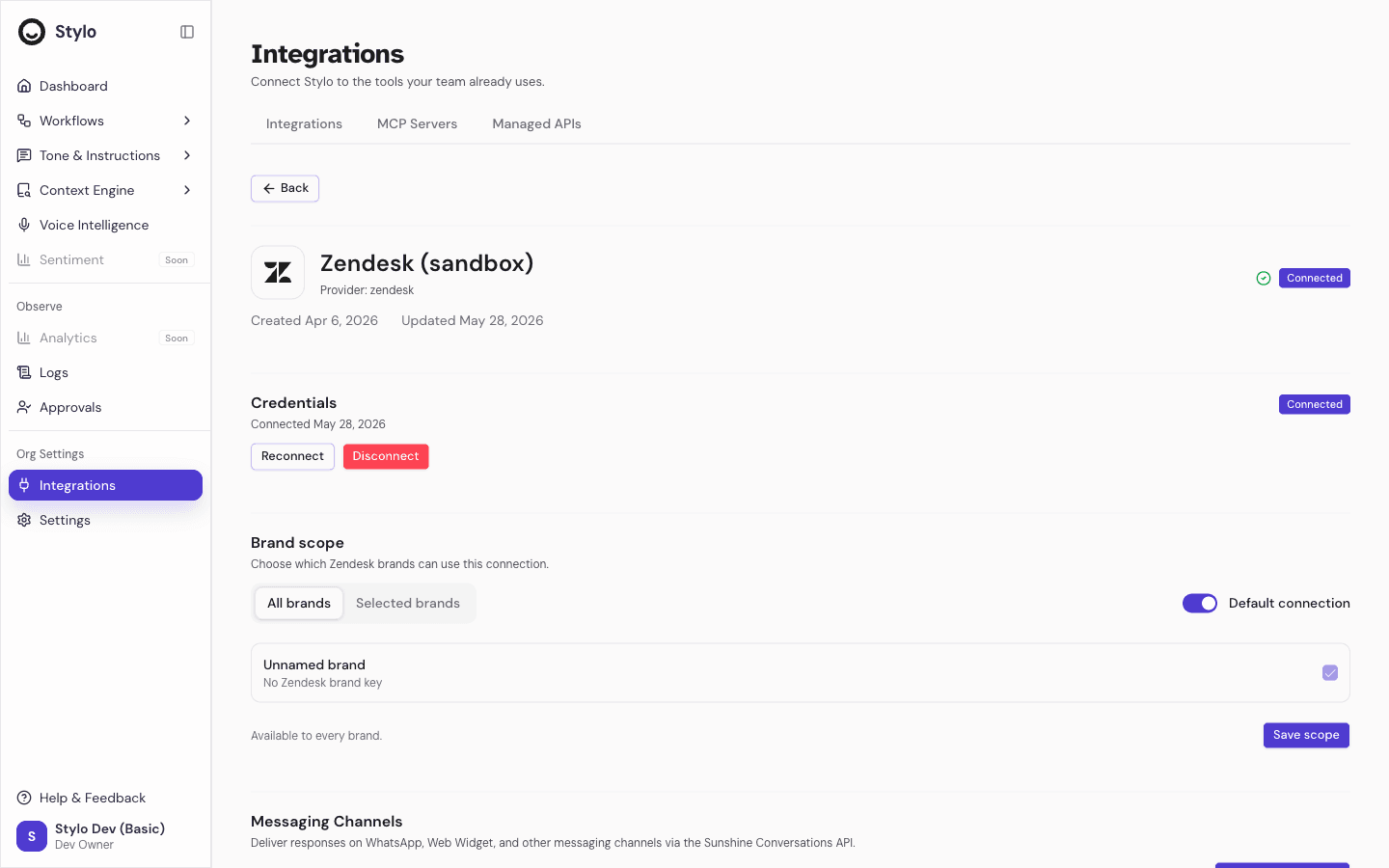
Open the integration’s detail page and review its connection status.
The integration surfaces distinguish between:
- Connected
- Degraded
- Auth Expired
- Disconnected
- Error
These statuses point to different next steps:
- Connected means the issue is likely elsewhere
- Degraded means some features may not work correctly
- Auth Expired means the connection needs updated credentials
- Disconnected means the integration is not active
- Error means the integration failed and should be reviewed before reuse
The integration detail page also gives you recovery actions such as reconnecting or disconnecting the integration.
Practical troubleshooting workflow
Use this sequence for most operational issues:
- Identify whether the problem is about a workflow run, an approval, knowledge freshness, or an integration.
- If it is a workflow issue, open Execution History and then the affected run in Execution Detail.
- If the run is waiting for review, move to Approvals.
- If the issue looks like missing or stale content, check Sync Status in the relevant knowledge base.
- If the issue looks like missing external data, open the relevant integration and review its status.
When to escalate
Escalate beyond normal workspace troubleshooting when:
- The same workflow keeps failing after you confirm the configuration is unchanged
- A knowledge base remains in Error after you address the visible content issue
- An integration stays in Error or Auth Expired after reconnecting it
- The product surfaces do not expose enough information to explain the failure safely
When you escalate, include the execution ID, workflow name, sync error text, or integration status so the next reviewer can start from the same evidence.