

Analytics and Operations
See what your workflows did, find and diagnose failed runs, and handle anything waiting for human review.
Once your workflows are running, you'll want to know what they did, catch anything that failed, and clear anything waiting on a person. Stylo gives you three views for that — Logs, a per-workflow Execution History, and Execution Detail — plus an Approvals queue for steps that pause for review.
Find a recent run: Logs
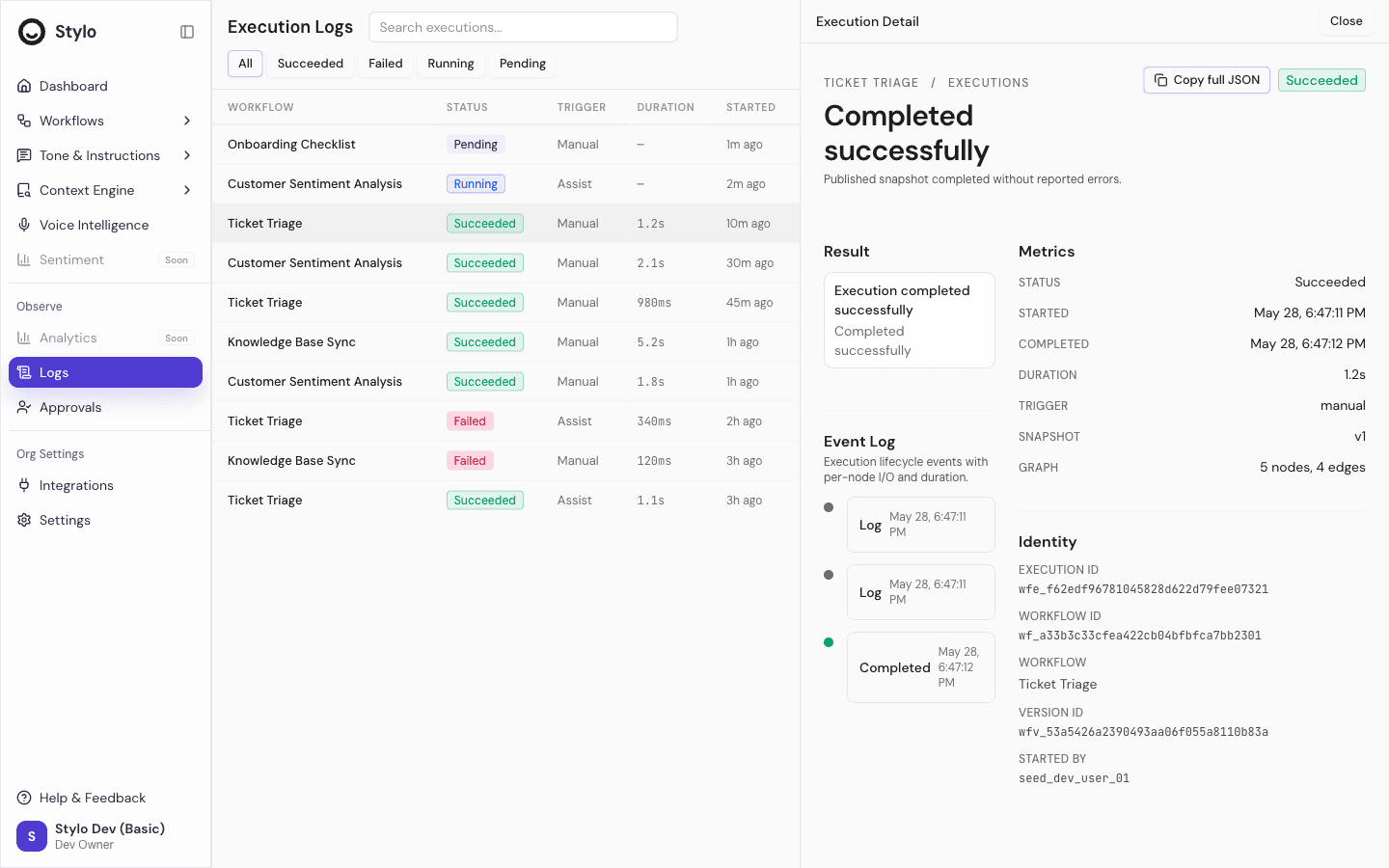
The Logs page is the fastest way to see everything that ran across your workspace. Start here when you know something happened recently but not which workflow or run to look at.
You can:
- Search runs and filter by status
- Scan the workflow name, trigger, duration, and start time
- Open any run in a side-by-side detail view
Focus on one workflow: Execution History
Every workflow has its own Execution History. Use it when you want to look at a single workflow — compare its recent runs, or check whether a change you made affected how it behaves.
Diagnose a run: Execution Detail
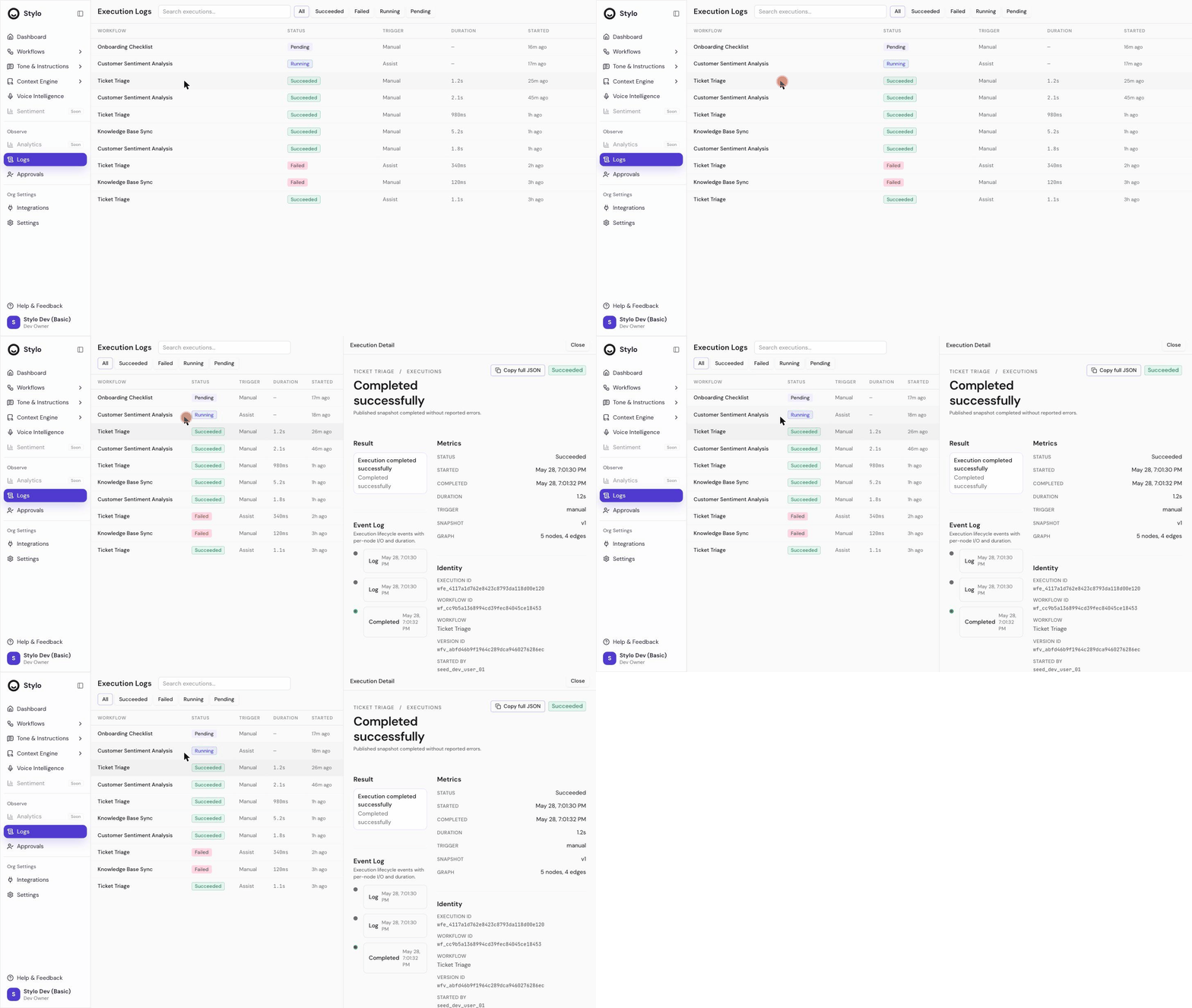
Open a run to see its full record. Depending on what happened, you'll see:
- A success summary, or a failure message and error code
- Whether it's queued, in progress, or waiting for approval
- Timing details and the run's event timeline
What a run's status means
| Status | What it means |
|---|---|
| Pending | The run is queued and hasn't started. |
| Running | Work is in progress. |
| Waiting for approval | A person needs to approve the next step before it continues. |
| Succeeded | The workflow finished without error. |
| Failed | The run ended with an error — open it to see the message and code. |
Clear human-review steps: Approvals
When a workflow pauses for a person to weigh in, that handoff lands in Approvals. Check it when:
- A workflow is waiting for review
- A backlog run produced items to approve
- A higher-risk action needs sign-off before it runs
Execution Detail will tell you a run is waiting for approval, but you act on it in the Approvals queue.
A good order for investigating an issue
Start in Logs and find the run.
Open its Execution Detail and read the status, summary, error code, and timeline.
If it's waiting on a person, go to Approvals.
If one workflow keeps failing, open that workflow's Execution History to see the pattern.
A dedicated analytics dashboard isn't available yet — today's review tools are Logs, Execution History, Execution Detail, and Approvals.
Related
- Workflow testing and execution history for testing and reviewing a single workflow
- Backlog runs for bulk runs that feed into Approvals
- Troubleshooting for fixing common failures