

Managed APIs
Import an OpenAPI spec so Stylo can use your REST API as tools in workflows and AI experiences.
Managed APIs let you bring your own REST API into Stylo. You create a managed API, import its OpenAPI spec, then choose which operations or tool groups Stylo can use. This is useful when your team needs Stylo to look up data or take actions in a system that does not already have a built-in integration.
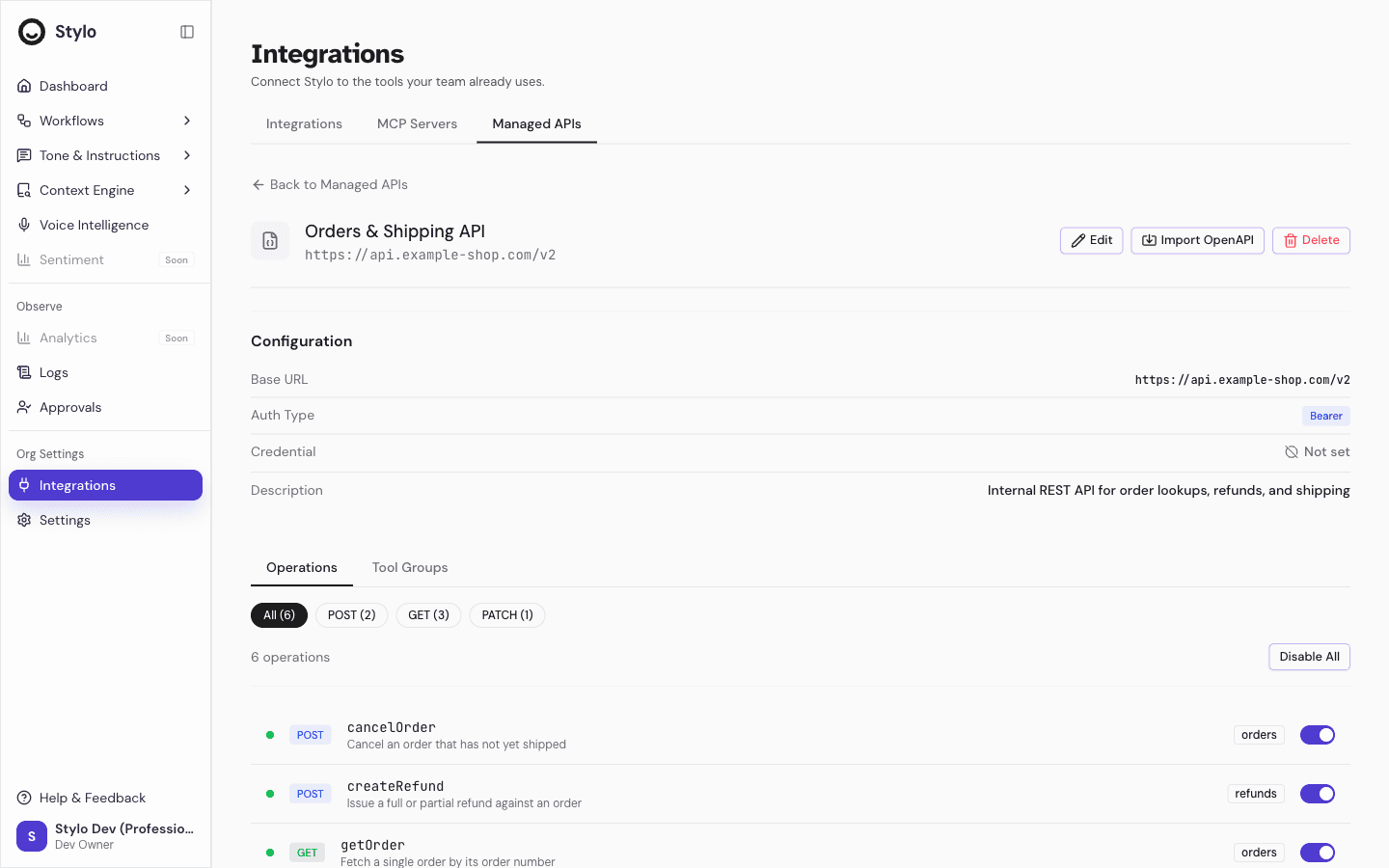
What you can do with Managed APIs
After setup, Stylo can turn your imported API into tools that are available to workflows and AI.
- Import operations from an OpenAPI spec in JSON or YAML
- Choose an authentication type for the API
- Review imported operations one by one
- Enable or disable groups of related operations
- Limit what Stylo can call before the API is used in production
Before you start
Managed APIs are gated by plan. In the current product, the Managed APIs area is shown as a Professional feature, and your workspace can only create up to the number of managed API configurations allowed by your plan.
Before you create one, make sure you have:
- A valid base URL for the API
- An OpenAPI specification for the endpoints you want Stylo to use
- A clear list of which read actions and write actions should be exposed
Create a managed API
- Go to Integrations.
- Open the Managed APIs tab.
- Click Add API.
- Enter a Name.
- Enter the API Base URL.
- Select an Auth Type:
NoneBearerAPI KeyBasicCustom Header
- Add an optional Description.
- Click Create API.
Stylo then opens the new managed API detail page, where you can import the OpenAPI spec and review what will be available as tools.
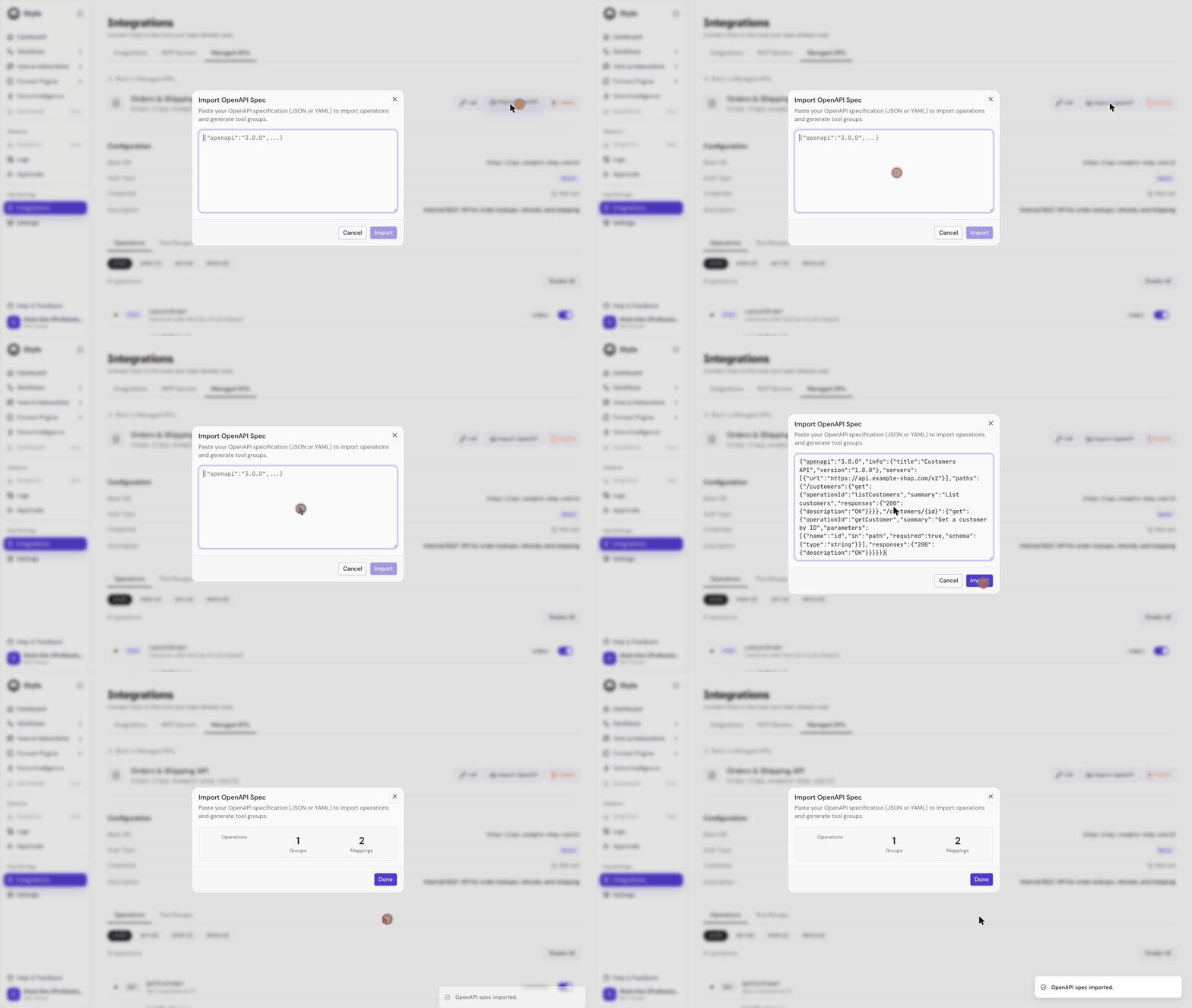
Import an OpenAPI spec
- Open the managed API you created.
- Click Import OpenAPI.
- Paste the OpenAPI specification into the dialog.
- Click Import.
If the import succeeds, Stylo shows a result summary with:
- Number of operations imported
- Number of tool groups created
- Number of operation-to-group mappings created
If the spec cannot be parsed, the import fails with a validation error.
Review imported operations
The Operations tab is the most direct way to control API access.
For each imported operation, Stylo shows:
- The HTTP method
- The imported operation name
- The operation description, when available
- The detected resource, when available
- An enable or disable switch
You can also:
- Filter the list by HTTP method
- Enable or disable a single operation
- Enable or disable all currently filtered operations
This is the safest place to narrow access before you use the managed API in live workflows.
Review tool groups
The Tool Groups tab shows the grouped tools generated from the imported spec. Each group bundles related operations into a smaller set of tools that Stylo can choose from more easily.
For each group, Stylo shows:
- Group name
- Group description, when available
- Intent label
- Sensitivity label
- Number of mapped operations
- An enable or disable switch
Use tool groups when you want broader control over a whole category of actions. Use individual operation toggles when you need tighter control.
Recommended rollout pattern
For most teams, the safest rollout is:
- Import the full OpenAPI spec.
- Start by enabling only lookup or low-risk operations.
- Review any write actions carefully before enabling them.
- Test the managed API in a controlled workflow before wider rollout.
- Expand access only after the results are predictable.
This matters because managed APIs can expose real external actions, not just read-only lookups.
Limits and safety
- Managed APIs can be deleted from the list or detail page.
- Deleting a managed API removes its operations and tool groups and cannot be undone.
- Stylo flags some imported operations as write or sensitive actions — review those carefully before you enable them.
- If your workspace reaches its managed API limit, you can't create another until you're on a higher plan.
Maintain a managed API
You choose an authentication type when you create or edit a managed API. After that, you can:
- Edit its name, base URL, auth type, or description
- Re-import the OpenAPI spec to refresh the available operations
- Revisit operations and tool groups to tighten or widen access
- Delete the managed API when it's no longer needed
Related
- Start with Integrations for the broader integrations model
- Continue to Response Workflows if you want to use imported tools in automation