

Backlog Runs
Run response workflows across an existing Zendesk backlog, preview the matched tickets first, and review the resulting drafts in Approvals.
Backlog runs let you apply your enabled response workflows to an existing Zendesk view instead of waiting for new tickets to arrive. Use this when you want to review drafts for older tickets in bulk, validate workflow coverage against real backlog work, or work through a queue with human review before anything is sent.
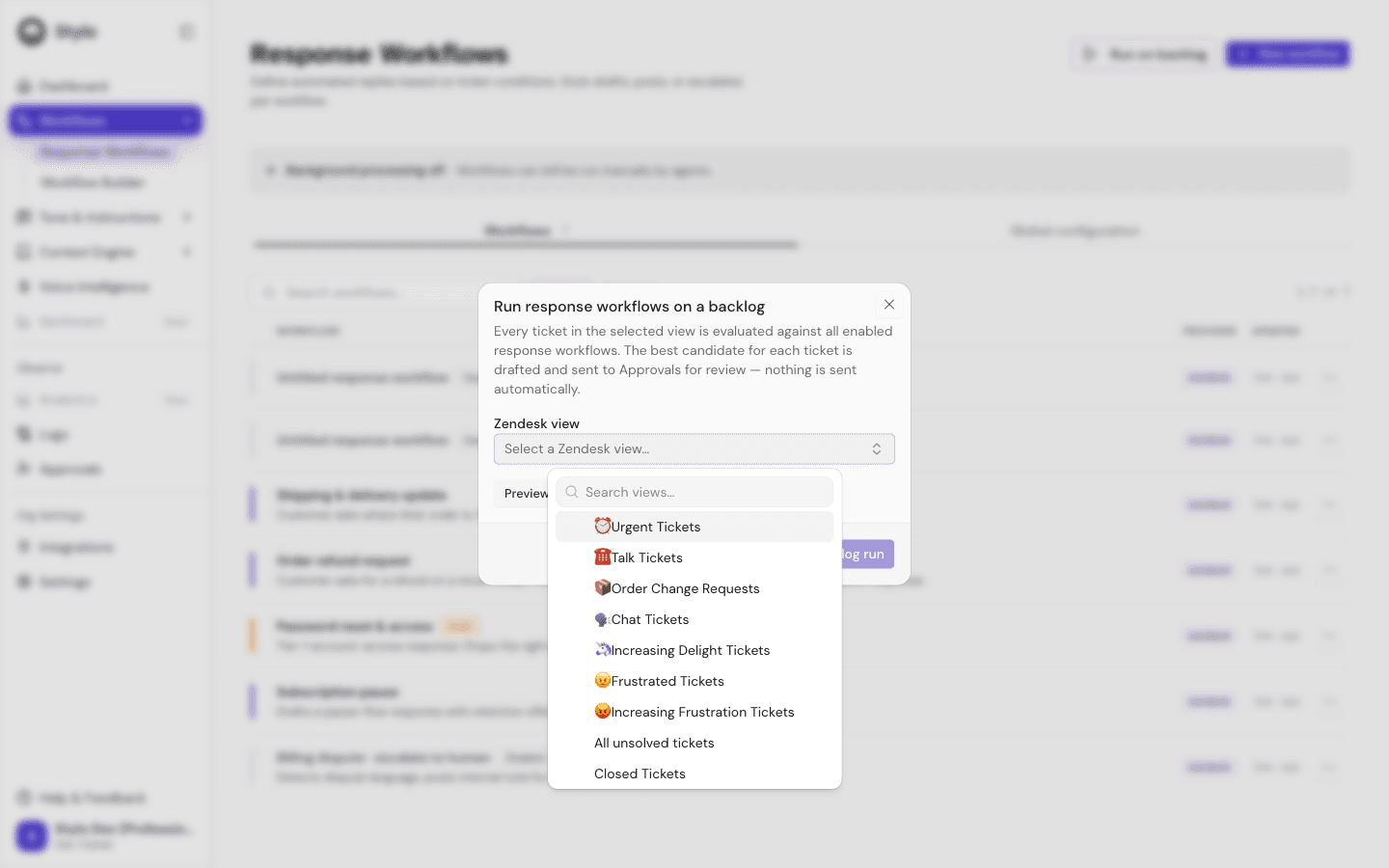
What a backlog run does
When you start a backlog run, Stylo:
- Reads tickets from a selected Zendesk view
- Evaluates each ticket against all enabled response workflows in the workspace
- Chooses the best candidate for each ticket
- Creates drafts in Approvals for review
For response workflows, backlog runs do not send customer-facing responses automatically.
Before you start
Backlog runs depend on your current setup.
- Zendesk must be connected
- You need access to the backlog-run feature on your plan
- Only enabled response workflows are considered during the run
- The current filter source is a Zendesk view
If your plan does not include background workflow access, Stylo blocks the run.
Preview a backlog run
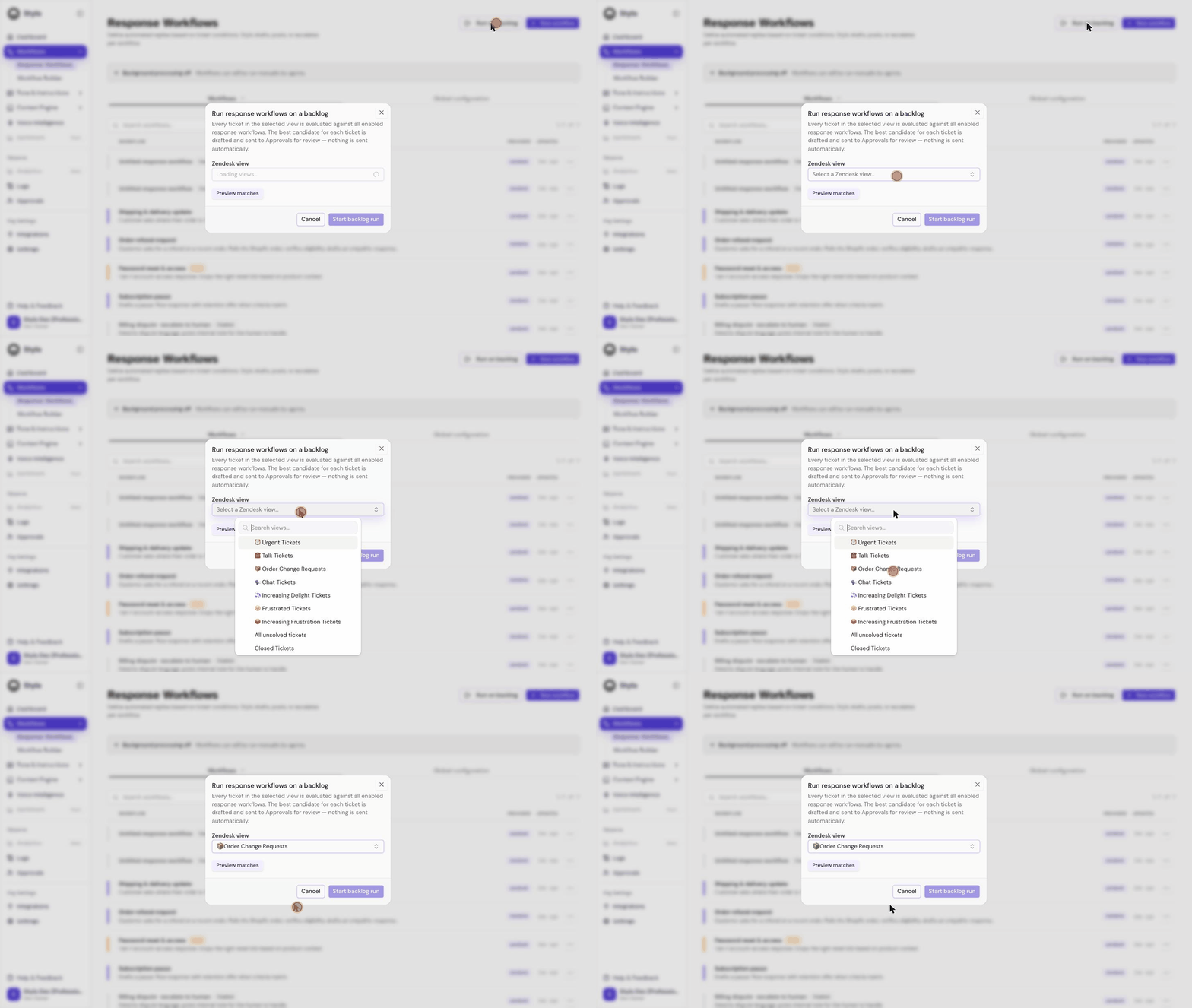
Start from the Response Workflows page and select Run on backlog.
- Choose a Zendesk view.
- Select Preview matches.
- Review the matched ticket count before starting the run.
The preview shows:
- How many tickets matched
- Whether the result was truncated
- A small sample of matched ticket IDs
Understand the ticket cap
Backlog runs use a cap when resolving tickets from the selected view.
- The current backlog dialog runs up to 500 tickets from the selected view
- If the selected Zendesk view contains more than 500 tickets, the preview and run are truncated to that capped set
- The preview step tells you when truncation happened before you start the run
Start the run
After previewing the matches, select Start backlog run.
Stylo creates a backlog run ID and routes you to Approvals filtered to that backlog run. From there, your team can review the generated drafts.
Review results in Approvals
Backlog-run drafts are reviewed in the Approvals queue, not in the workflow editor.
In the backlog review flow, you can:
- Filter to backlog items only
- Filter to one specific backlog run
- See live progress for the active run
- Approve or reject the generated drafts
The backlog run header shows:
- How many tickets were queued
- How many drafts have been approved or rejected
- How many are still pending review
- The current approval rate
Watch for the stopping warning
Stylo shows a caution banner when a backlog batch is being rejected often.
That warning appears when:
- At least 10 items have been reviewed
- The approval rate drops below 60%
If that warning appears, stop reviewing the batch and adjust the workflow before continuing.
Recommended workflow
Use backlog runs as a controlled rollout step:
- Make sure the workflows you want to evaluate are enabled.
- Choose a Zendesk view with representative tickets.
- Preview the matched count.
- Start the backlog run.
- Review the generated drafts in Approvals.
- If approval quality is low, stop and refine the workflow before running another batch.
Boundaries and risk
Backlog runs are safer than auto-send because they create drafts for review, but they still affect how much work your team must process afterward.
- Every matched ticket is evaluated against all enabled response workflows
- The selected view can generate a large review queue quickly
- A weak workflow can create many low-quality drafts if you run it against a broad view
- Execution details for individual workflows still appear in each workflow's execution history
Related
- Workflow Testing and Execution History to validate workflows before running them at backlog scale
- Assist suggestions to understand how drafts appear for review
- Progressive Automation to place backlog runs in a safer rollout path