

Voice AI
Manage Zendesk call processing in Stylo by enabling Voice AI and maintaining the managed trigger that sends call tickets into Stylo.
Voice AI lets your team process Zendesk call tickets through Stylo's transcription and summarization pipeline. Use it when your support operation handles calls in Zendesk and you want Stylo to receive those call events reliably. The feature is off by default — turn it on and install the managed trigger to start processing calls.
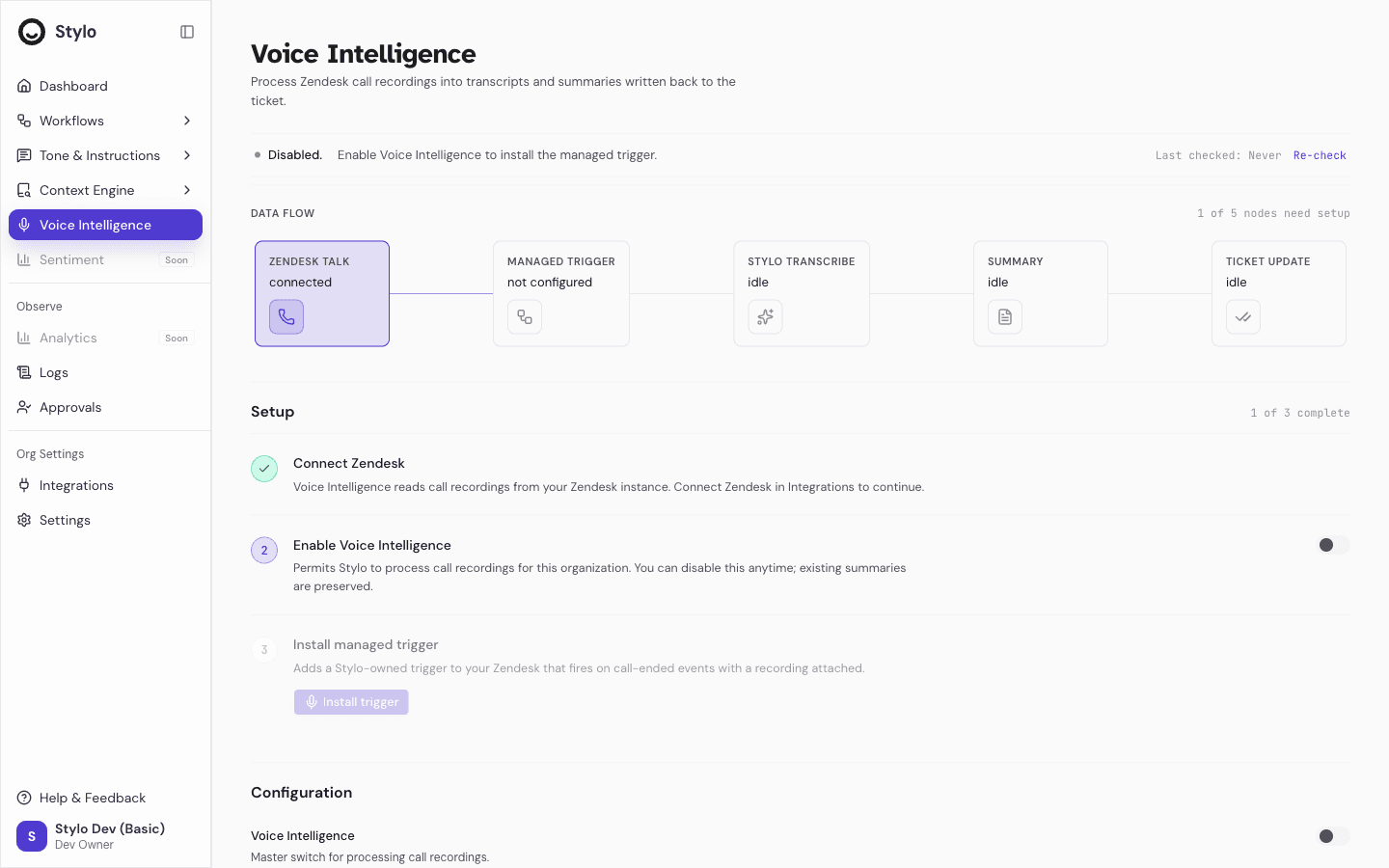
What you can do here
From the Voice AI page you can:
- Turn Voice AI on or off for the workspace
- Check whether the managed Zendesk trigger is installed and healthy
- Repair or remove the managed trigger when Zendesk delivery breaks
- Review the latest trigger check time, install time, and any current error
Before you use it
Voice AI currently depends on Zendesk.
- Your workspace must have a Zendesk integration connected before you can install the managed trigger
- Only workspace owners and admins can change Voice AI settings
- Agents and viewers can see the page, but they cannot change the settings
If Zendesk is not connected, the page shows a warning and the trigger actions stay unavailable.
Set up Voice AI
- Open Voice AI from the main navigation.
- Turn on Enable Voice AI.
- Select Install Trigger.
- Confirm that the status changes to a healthy state.
When the managed trigger is installed, Zendesk is configured to send voice ticket events to Stylo.
Understand trigger status
The status badge shows the current trigger state.
not installed: No managed Zendesk voice trigger is installed yet.healthy: The managed trigger is installed and appears to be working.broken: Stylo recorded a trigger problem. Check the current error and repair or recheck the trigger.unknown: Stylo could not confirm the current trigger state.
The page also shows:
- Last checked for the most recent status check
- Last installed for the most recent install time
- Current Error for the latest recorded trigger error message and code, if one exists
Fix common trigger problems
If the trigger is missing or failing, use the actions on the page in this order:
- Select Recheck Status to refresh the current snapshot.
- If the trigger is still broken, select Repair Trigger.
- If the managed trigger should no longer send voice ticket events to Stylo, select Remove Trigger.
Use Install Trigger only when no managed trigger is installed yet.
When to escalate
Voice AI is an admin-managed feature. Escalate to a workspace admin if:
- Zendesk is not connected
- The page shows a persistent broken status after a repair attempt
- The current error keeps returning after a recheck
- Your team needs Voice AI disabled or the trigger removed
What happens when you disable Voice AI
Turning Voice AI off stops Stylo from processing calls, even if the managed Zendesk trigger is still installed:
- Zendesk keeps sending call webhooks (the trigger remains on Zendesk's side).
- Stylo drops each incoming call event at ingestion — no transcription or summarization runs.
- Existing summaries are preserved.
- The trigger stays installed, so you can re-enable Voice AI later without reinstalling it.
To stop Zendesk from sending the events entirely, use Remove Trigger.