

Knowledge Sync and Documents
Understand how Stylo syncs knowledge content, what document and file states mean, and how to keep a knowledge base healthy.
After you connect or upload content, Stylo turns it into a searchable knowledge base — but only the content that finishes syncing and indexing is actually used in replies. This page shows you how to tell what's current, what's still processing, and what Stylo is really drawing on.
How knowledge bases are created
The current knowledge base wizard supports these source types:
- Zendesk
- Notion
- URL
- File Upload
The wizard walks through three steps:
- Choose a name and source.
- Configure the selected source.
- Review the summary and choose whether Auto-sync should be enabled.
This matters because document behavior depends on the source type you chose. A file-upload knowledge base behaves differently from a connected Zendesk, Notion, or URL source.
What you can monitor
Inside a knowledge base, Stylo gives you separate views for:
- Overview for sync status and source summary
- Documents for indexed content
- Files for uploaded file management
- Settings for knowledge-base-specific behavior
Read the sync status first
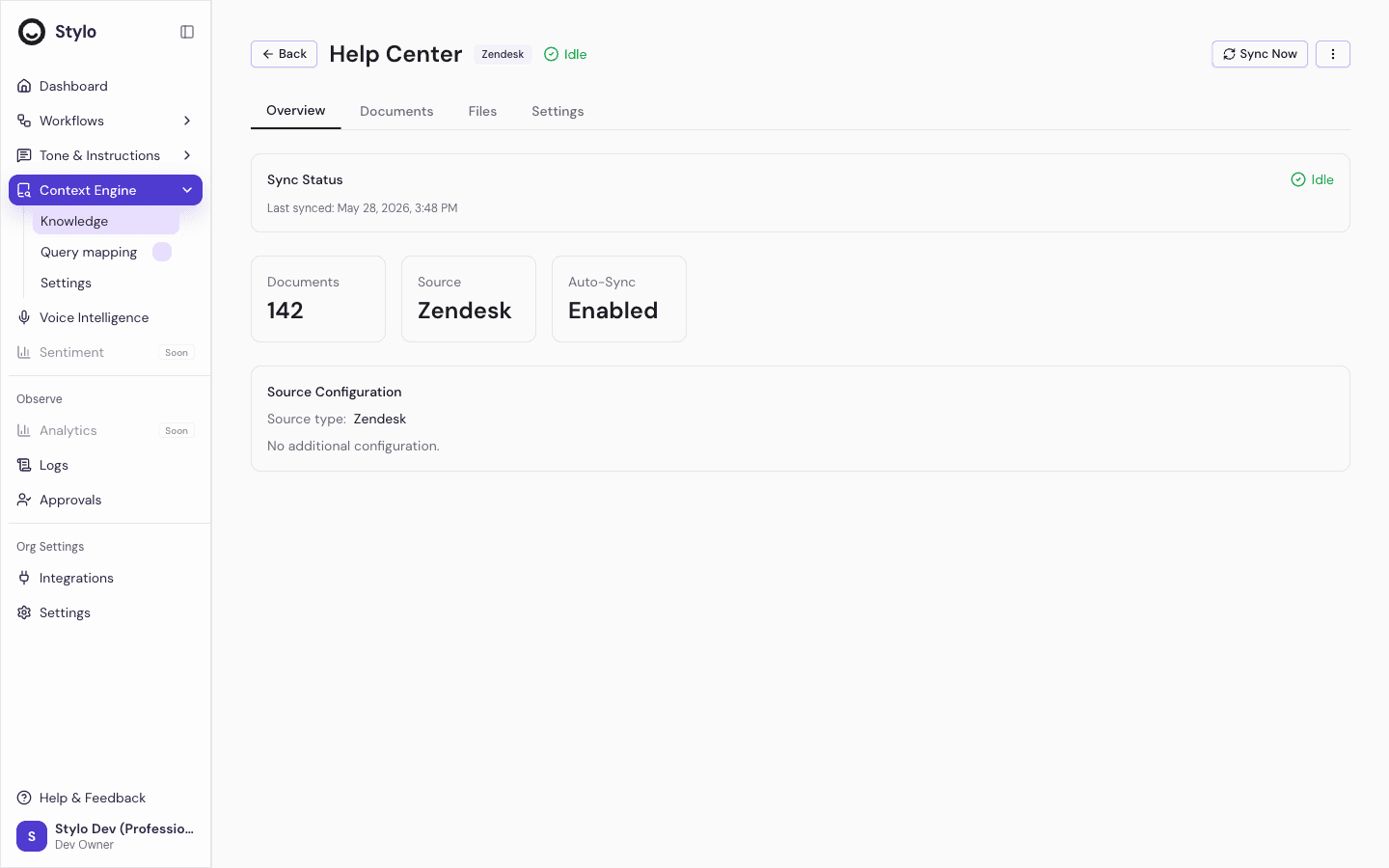
The Overview tab includes a Sync Status card. This is the fastest way to tell whether your knowledge base is current or stuck.
Stylo shows three main sync states:
- Idle when the knowledge base is not actively syncing
- Syncing when documents are being processed
- Error when the sync failed
When a sync is running, Stylo also shows:
- Progress through the document count
- How many documents have been processed
- How many failed during the run
If a sync has completed before, Stylo also shows Last synced time.
Know what auto-sync means
Each knowledge base is created with an Auto-sync choice in the setup wizard.
- When auto-sync is enabled, Stylo is set up to keep that source updated automatically
- When auto-sync is disabled, changes in the source may not appear until a sync is triggered
This matters most for connected sources like Zendesk, Notion, or URL-based knowledge bases. It is less important for one-time file uploads.
Understand the difference between files and documents
Stylo separates uploaded files from indexed documents.
- Files are the raw uploaded assets, such as PDF, DOCX, or TXT files
- Documents are the indexed records Stylo searches and uses for retrieval
This distinction matters because a file can exist before processing finishes, while documents represent the content that is actually available for search and grounding.
File uploads and processing states
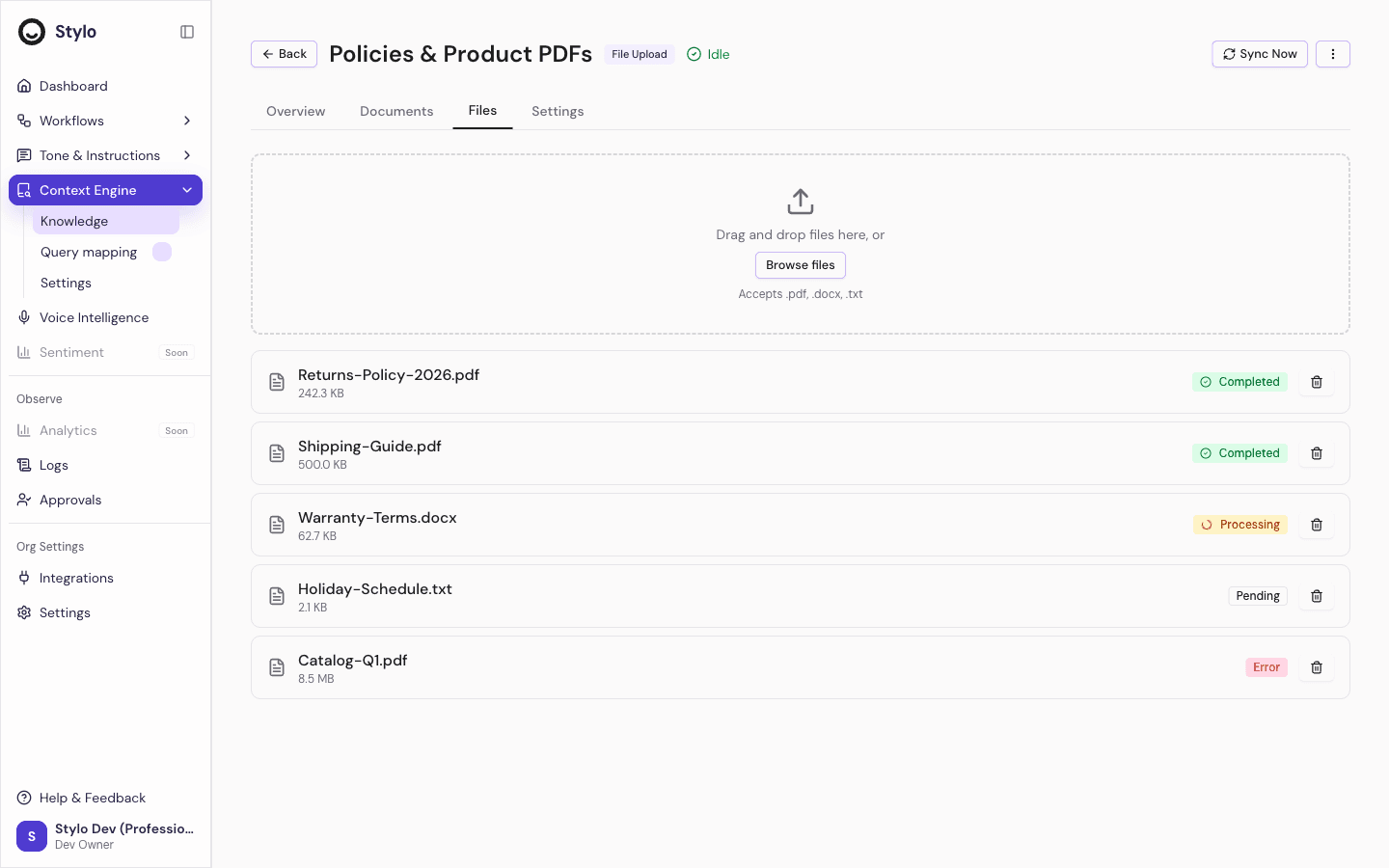
For a File Upload knowledge base, the Files tab lets you upload:
.pdf.docx.txt
After upload, each file gets a processing state:
- Pending when the file has been accepted but not started
- Processing when Stylo is actively working on it
- Completed when the file finished processing
- Error when processing failed
If a file fails, Stylo surfaces the processing error in the file row.
For non-file-upload knowledge bases, the files view is not the main way content enters Stylo. In those cases, the sync process pulls content from the connected source instead.
When to use the Documents tab
Use the Documents tab when you want to inspect what Stylo has indexed, not just what was uploaded.
The Documents view lets you:
- Browse indexed documents
- Expand a document to preview its content
- Search within the knowledge base
- Filter documents by type
- Edit document labels and content tags
This is the best place to verify whether important content is present and whether it looks usable for retrieval.
Source documents and Q&A documents
The Documents tab supports three filters:
- All
- QA
- Source
These filters matter because Stylo stores more than one document type in the same knowledge base:
- Source documents are the original synced or uploaded content
- QA documents are AI-generated question-and-answer pair documents
If you want to audit the original source material, use Source. If you want to review the generated Q&A layer, use QA.
The search box on the Documents tab searches within that knowledge base and returns scored results. This is a practical way to verify that the content you expect is actually retrievable.
Editing labels and content tags
From the Documents tab, you can edit:
- Labels
- Content Tags
Use these when you want to improve how a document is categorized or described for your team.
Delete carefully
Stylo lets you delete both files and entire knowledge bases.
- Deleting a file removes the file and deletes the indexed document created from that file
- Deleting a knowledge base removes its documents and files
This is useful for cleanup, but it is also destructive. Use deletion when content is outdated, duplicated, or should no longer be searchable.
Practical health checks
Use this sequence when response quality drops or a sync looks wrong:
- Open the knowledge base Overview and check Sync Status.
- If the status is Error, review the error before assuming the content is current.
- Open Files to confirm uploaded files finished processing.
- Open Documents to confirm the expected content appears in the index.
- Search within the knowledge base to see whether the content is findable.
When this page matters most
This page is especially useful when:
- A newly uploaded file is not appearing in AI-grounded responses yet
- A synced source looks stale
- You need to confirm whether the problem is with the raw file, the sync run, or the indexed document layer
- You want to clean up duplicate or low-value content